Build a Privacy-First Offline AI Agent Locally (Qwen, DeepSeek, Llama)
Every line of code you send to ChatGPT or GitHub Copilot leaves your machine. For proprietary codebases, healthcare applications, or financial systems, this is a dealbreaker. But running AI locally used to require a PhD in machine learning.
Not anymore. With Ollama and FlyEnv, you can run state-of-the-art language models entirely offline—in minutes, not days.
Why Offline AI Matters
The Cloud AI Privacy Problem
When you use cloud-based AI coding assistants:
- Your proprietary code travels to external servers
- Training data may retain sensitive snippets
- Compliance violations (HIPAA, GDPR, SOC2)
- Network latency slows responses
- API costs accumulate
The Offline AI Advantage
| Aspect | Cloud AI | Local AI (Ollama) |
|---|---|---|
| Data privacy | Sent to third parties | Never leaves your machine |
| Internet required | Yes | No |
| Response speed | 500ms-2s | 50-500ms (local) |
| Monthly cost | $10-20/user | Free |
| Customization | Limited | Full model control |
| Compliance | Complex | Straightforward |
What You Will Build
A fully local AI assistant that can:
- Answer coding questions
- Explain complex functions
- Generate code snippets
- Review pull requests
- All without internet connection
Prerequisites
Hardware Requirements
| Model Size | RAM Required | Best For |
|---|---|---|
| 3B parameters | 4GB | Basic coding help |
| 7B parameters | 8GB | General development |
| 13B parameters | 16GB | Complex reasoning |
| 70B parameters | 64GB+ | Enterprise-grade |
Recommended: 16GB+ RAM for versatile coding assistance
Software
- FlyEnv installed (macOS, Windows, or Linux)
- ~10GB free disk space for models
Step-by-Step Setup
Step 1: Install Ollama
FlyEnv makes this one-click simple:
- Open FlyEnv
- Navigate to Ollama module
- Click Install
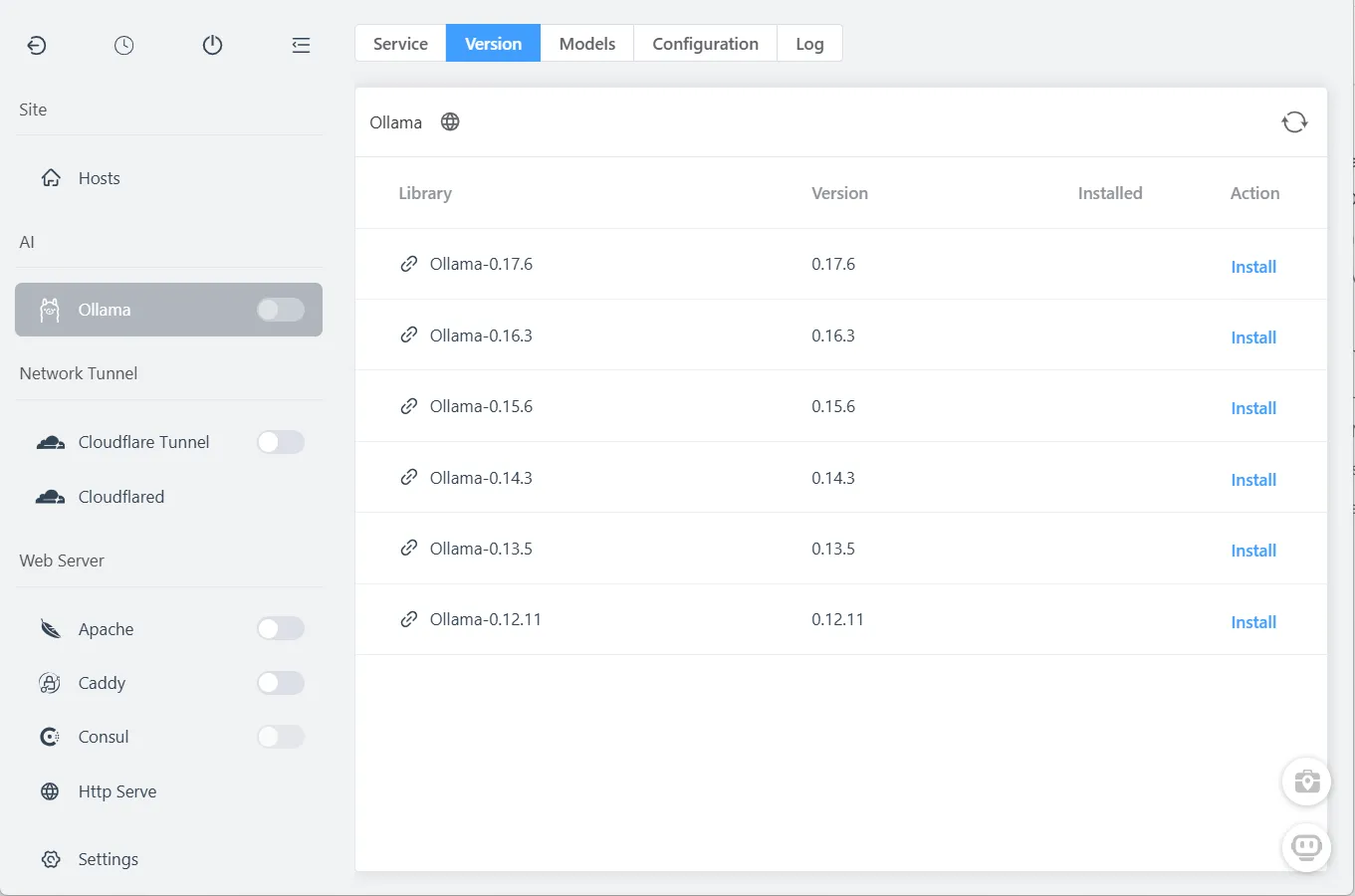
Ollama installs as a native service—no Docker containers, no Python environments to configure.
Step 2: Start Ollama Service
In the Ollama module:
- Click the Start button
- Verify service status shows "Running"

The Ollama API is now available at http://127.0.0.1:11434
Step 3: Download AI Models
FlyEnv provides easy access to popular models:
| Model | Size | Strengths |
|---|---|---|
| DeepSeek-R1 | 7B-70B | Code generation, reasoning |
| Llama 3.3 | 8B-70B | General purpose, balanced |
| Qwen 2.5 | 7B-72B | Multilingual, coding |
| Phi-4 | 14B | Microsoft research model |
| Mixtral | 8x7B | Mixture of experts |
To install a model:
- In Ollama module, switch to Models tab
- Select a model (start with 7B for 16GB RAM)
- Click Pull
Download progress displays in real-time. First download may take 10-30 minutes depending on model size and connection.

Pro tip: Start with Qwen 2.5 7B or DeepSeek-R1 7B for excellent coding assistance without massive resource usage.
Step 4: Enable AI Assistant Interface
- Open FlyEnv Settings
- Find AI Assistant section
- Toggle Enable AI Assistant

Step 5: Open the Chat Interface
Click the AI Assistant icon in the bottom-right corner:

The chat interface opens, ready for interaction.
Step 6: Configure Ollama Connection
In the AI Assistant panel:
- Click Settings (gear icon)
- Set API URL:
http://127.0.0.1:11434 - Select your installed model from dropdown
- Click Save
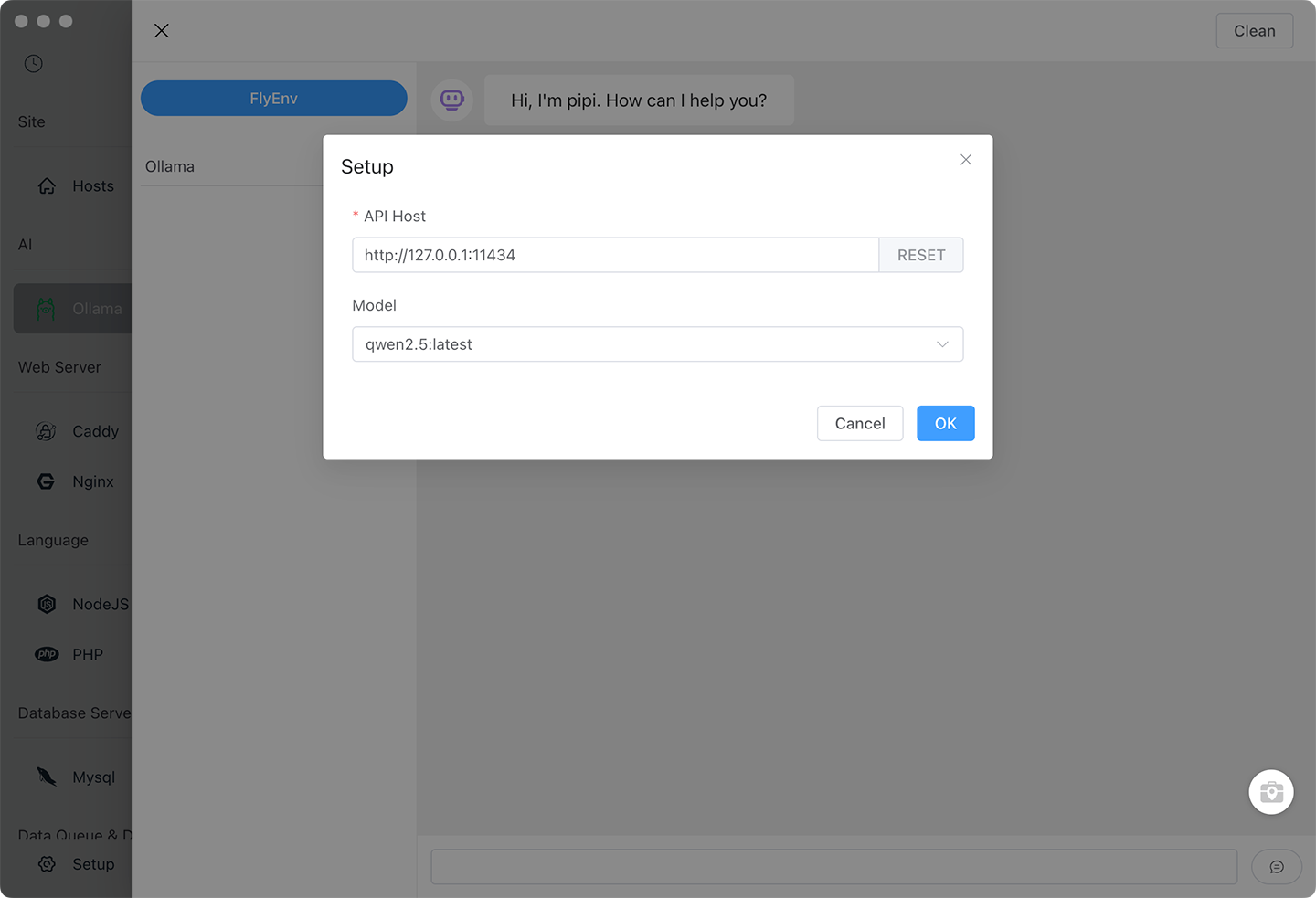
Team setup: For shared AI resources, enter a colleague's Ollama server IP. One powerful workstation can serve the whole team.
Step 7: Start Your First Chat
Click New Chat and ask anything:
You: Explain this PHP function: array_reduce()
AI: array_reduce() iteratively reduces an array to a single value using a callback function...

You: Generate a React component for a modal dialog
AI: [Generates complete, styled component code]

Using AI for Development Workflows
Code Explanation
Paste complex code and ask for explanation:
"Explain what this Laravel Eloquent query does..."
"What is the time complexity of this algorithm?"
"How does this recursive function work?"
Code Generation
Generate boilerplate quickly:
"Create a NestJS controller for user CRUD operations"
"Write a Python script to parse CSV and insert to MySQL"
"Generate a Docker Compose file for PHP, MySQL, Redis"
Code Review
Paste code for instant feedback:
"Review this function for security issues"
"How can I optimize this database query?"
"Is this the idiomatic way to do this in Go?"
Learning Assistance
"Explain React hooks like I'm 5"
"What's the difference between var, let, and const?"
"Teach me about dependency injection in PHP"
Advanced Features
Role-Based Prompts
The AI Assistant supports different personas:
Click the Role selector
Choose from presets:
- Code Reviewer: Critical analysis of code quality
- Teacher: Patient explanations of concepts
- Architect: High-level system design advice
- Debugger: Focus on finding and fixing bugs
Or create custom roles:
Role: Laravel Expert
Prompt: You are a senior Laravel developer with 10 years experience.
Provide best-practice solutions and explain the "Laravel way."

Response Actions
Every AI response offers:
- Copy: Copy code blocks or entire response
- Read Aloud: Text-to-speech for accessibility
- Regenerate: Try a different response
- Continue: Expand on partial answers

Multiple Model Comparison
Run different models side-by-side:
- Open multiple chat tabs
- Configure each with different models
- Ask the same question
- Compare responses
This helps identify which model works best for your specific use case.
Optimizing Performance
Model Size vs Quality
| Use Case | Recommended Model | Response Time |
|---|---|---|
| Quick lookups | Qwen 2.5 3B | <100ms |
| Daily coding | DeepSeek-R1 7B | 200-500ms |
| Complex architecture | Llama 3.3 13B | 500ms-1s |
| Code review | Qwen 2.5 32B | 1-3s |
GPU Acceleration
On macOS, Ollama automatically uses Apple Silicon Neural Engine.
On Linux/Windows with NVIDIA GPU:
# Ollama uses CUDA automatically if available
# Verify GPU usage:
ogpu-smi  # or nvidia-smi
Model Management
Free disk space by removing unused models:
# In terminal
ollama rm llama2:13b  # Remove specific model
ollama list            # See installed models
Frequently Asked Questions (FAQ)
Q: Is this really completely offline?
A: Yes. Once models are downloaded, no internet connection is required. Your data never leaves your machine.
Q: How does this compare to GitHub Copilot?
A: Copilot offers IDE integration and training on public code. Local AI offers privacy and zero cost. Many developers use both: Copilot for public projects, local AI for proprietary work.
Q: Can I use my own fine-tuned models?
A: Yes. Ollama supports GGUF format models. Place them in Ollama's models directory.
Q: Why is response quality lower than ChatGPT?
A: Local 7B models are smaller than GPT-4. For coding tasks, they are surprisingly capable. For complex reasoning, larger models (13B-70B) close the gap significantly.
Q: Can the AI access my project files?
A: Not automatically. You paste code into the chat. Future FlyEnv versions may add IDE integration.
Q: Is this legal for commercial use?
A: Yes. Models like Llama, Qwen, and DeepSeek have permissive licenses for commercial applications.
Q: How much electricity does this use?
A: Minimal. CPU inference uses ~10-30W. GPU inference uses 50-150W during active use only.
Privacy-First Development Workflow
- Proprietary code: Use local AI exclusively
- Open source projects: Can use either
- Client work: Always use local AI for their code
- Learning: Local AI for documentation and tutorials
Ready to Code with AI Privacy?
Take control of your development data. Set up your offline AI assistant in minutes.
Download FlyEnv with built-in Ollama support
🚀 Next Level: From Chat to Automation
Enjoying your private AI assistant? Take it further by building automated AI workflows that run 24/7 without your intervention.
What you'll gain:
- Webhooks — Trigger AI processing from external apps (Slack, GitHub, Stripe)
- Workflow automation — Chain multiple AI actions into pipelines
- API endpoints — Give your apps access to local AI models
- Remote access — Control your AI workflows from anywhere
👉 Build Self-Hosted AI Workflows with n8n & Ollama — Turn your offline AI into an automation powerhouse
🤖 Build an AI Agent That Takes Action
Want an AI that doesn't just chat—but actually does things for you? OpenClaw connects your local AI to messaging apps and gives it the power to:
- Read/write files on your computer
- Execute commands and run scripts
- Send messages via WhatsApp, Telegram, Discord
- Make HTTP requests and interact with APIs
👉 OpenClaw + Ollama Setup Guide — Build a self-hosted AI agent with zero API costs
Explore more productivity tools:
- PHP Code Obfuscation — Protect your code
- Cloudflare Tunnel — Secure sharing
- Project Version Management — Streamlined workflows